
Creating and Configuring an Export
An export turns collected records into a file or a response for another application. It does not start a new collection from the website. One source can have several exports for different recipients and data structures.
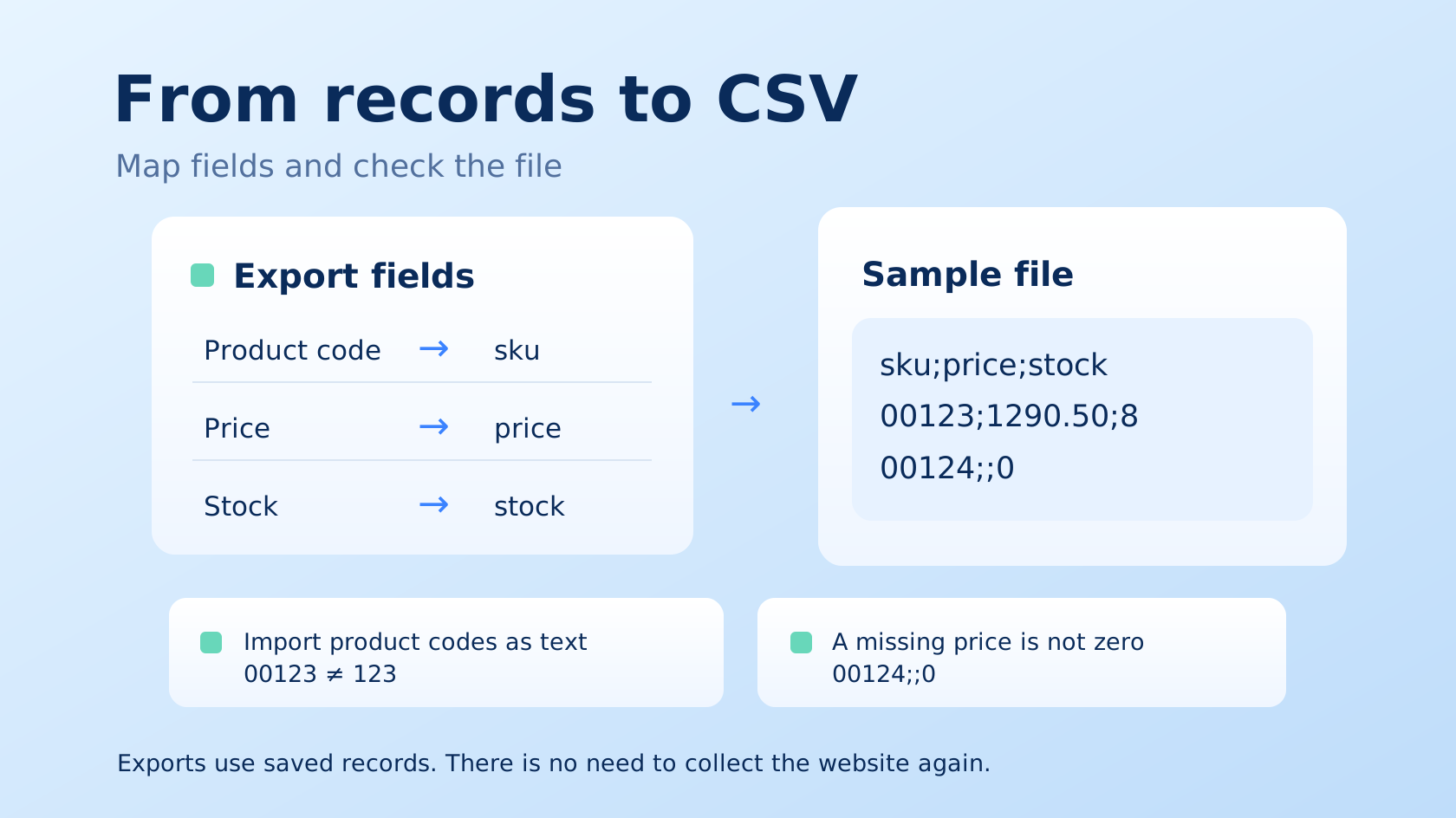
Open and save this guide to check field mapping and the resulting file.
In this example, Product code maps to sku, Price to price, and Stock to stock. With ; as the delimiter, two CSV records look like this:
sku;price;stock
00123;1290.50;8
00124;;0
Two consecutive delimiters indicate a missing price; 0 in the final column means zero stock. CSV has no data types. When importing, set the product-code column to Text to preserve leading zeroes. The file uses saved records and does not collect the website again.
Creation wizard
- Delivery method. Use CSV for tabular exchange, JSON for nested objects, XML for tag-based systems, an HTTP endpoint to request data by URL, or 1C-Bitrix to connect a website. Modules marked In development cannot be selected yet.
- Source. Choose a site and a clear name. The code used in links is generated automatically, though you can enter your own in advanced settings.
- Initial structure. Use all site fields, select fields yourself, or describe the desired output to AI.
Export page
Overview shows the source, record count, and configuration states. Fields configured means a schema exists; Delivery method selected means a module was chosen. Neither means delivery has succeeded. Open the preview and check the values yourself.
In Fields and processing, map a site field to its name in the output. For JSON, a path such as product.price creates a nested object; [] at the end denotes an array. Advanced options include type, CSV heading, and treatment of empty values. Save changes before testing.
The Result preview uses a small sample. Checking five records does not prove that the whole catalog has the same structure. Validating a code transformation consumes compute time.
In Getting data, change the module, expand format options, obtain a link, or configure automatic delivery. Changing a module preserves field mappings; check that they still work with the new output.
Your first file
Before the first run, Prepared files shows a Prepare file button. After starting, you can see the preparation history and status. Wait until it finishes, open the result, and download the file. Failed attempts remain in the history so you can read the reason.
Formats · Code transformations · Export API · 1C-Bitrix
Webhook
Choose Webhook, select a source, and configure the output as for any other export. Field mapping, nested objects, per-record code, and dataset transformations are supported. In Getting data, configure the JSON root container, formatting, and grouping. Preview JSON shows a small sample without sending it to the receiver.
Select Configure receiver and enter the handler URL and a signing secret of 16–128 characters. You can generate and copy a secret. Store the same value in your service. The saved secret is not returned by the API; leaving its field blank when editing keeps its current value. Use HTTPS for a production connection.
Delivery uses POST with Content-Type: application/json. The body follows your structure
without an additional envelope. Each request contains up to 100 records and 1 MiB. JSON
options apply to each batch. To calculate totals across the whole catalog, use dataset
code (up to 10,000 input records and 16 MiB).
Send manually, after a successful collection run, or on a UTC cron schedule. Send now queues delivery. Delivery history shows its outcome. Add delivery rules for multiple receivers.
The receiver must verify the signature, persist the data, and only then respond with 2xx.
X-Parser-Signature-256 contains t=<timestamp>,v1=<signature>. Compute HMAC-SHA256
on timestamp.raw_body using the shared secret, compare in constant time, and reject
stale timestamps. X-Parser-Event is export.records, X-Parser-Export is the export
code, and X-Parser-Count is the batch record count.
Network errors, 408, 429, and 5xx receive up to 3 attempts. Each retry preserves the body
bytes and Idempotency-Key (also X-Parser-Delivery). Deduplicate these keys at the
receiver. Redirects and other 4xx responses are not retried. Failed delivery remains in
the history; previously acknowledged batches are not rolled back.
Manually restarting a run can resend records with new delivery keys. Include _key in
the output and upsert by that stable record key; include _deleted to sync deletions.
Changing the URL keeps the cursor. Reset it explicitly if the new receiver needs the
entire catalog.